Processing a Payment Requisition
Whenever an invoice is received or a check needs to be issued, complete a Payment Requisition Form via Softdocs. Do not use this form if a purchase order (PO) has already been completed.
- Complete the Payment Requisition Form. Include the vendor name, invoice date and number, description of goods or services, and any special instructions. If paying an individual, include their legal name.
- Attach any required backup documentation (invoices) to the form in Softdocs.
- The form will route through the approval workflow and ultimately reach Accounts Payable for processing in the next scheduled check run.
Submitting a Form via Softdocs
The Business Office uses Softdocs for all internal and external forms.
Once signed in, you will be taken to your Central Dashboard, which includes tabs for Submissions, Forms, and various Documents.
Click on Forms and use the arrows to navigate through the forms available within the Business Services Department.
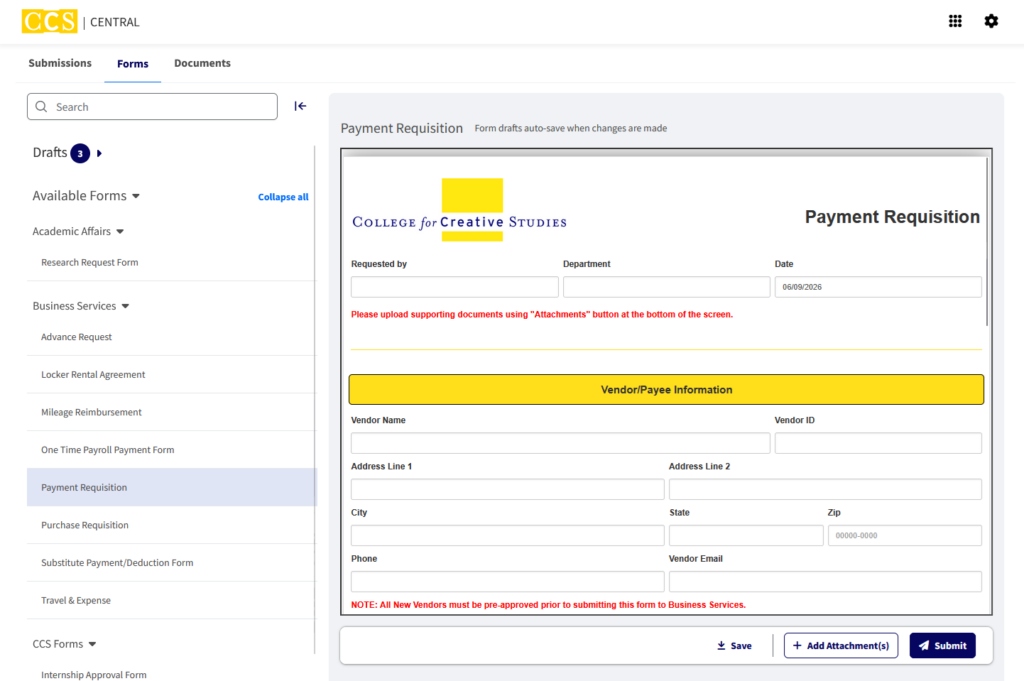
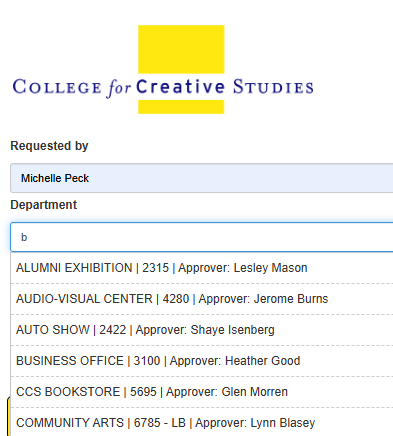
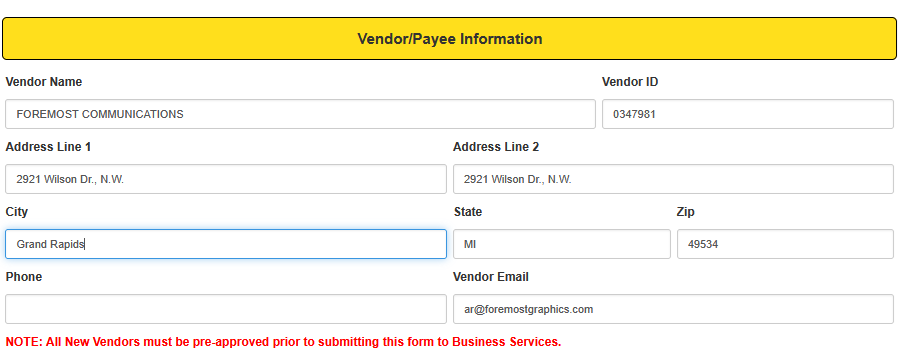
Once a form is selected, you can view and complete it directly within the dashboard. Form drafts automatically save whenever changes are made. Many fields, including Department, Vendor, Address, and GL Account information, will auto-populate based on the information entered.
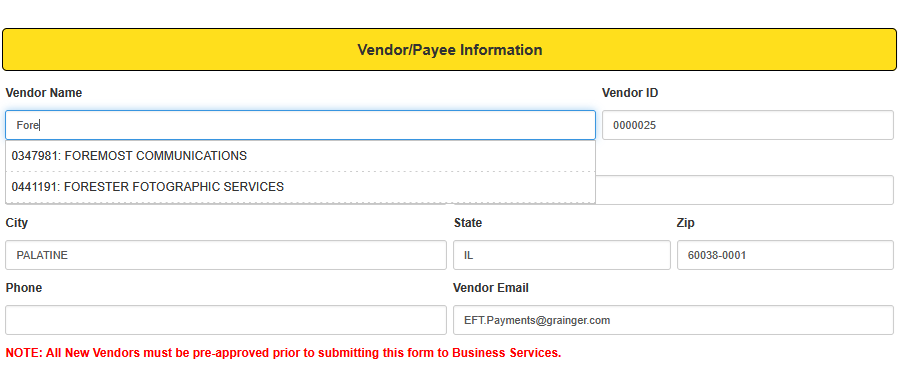
The Vendor Name field will also auto-populate as you begin typing the name of your preferred vendor. This list is linked directly to Colleague and includes active vendors that have provided services to the College within the past two years.
If your vendor does not appear in the list, please contact the Business Services department to initiate or restart the new vendor process. In most cases, the vendor will only need to provide an updated W-9.
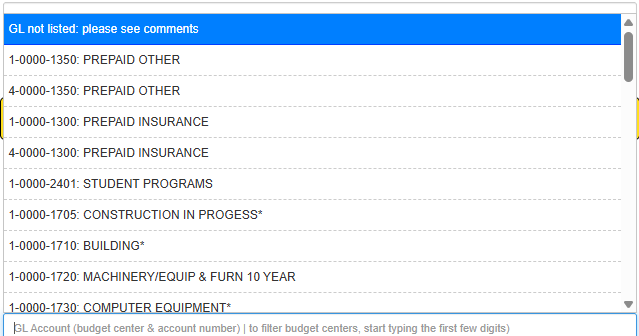
The GL Account field will also auto-populate based on your security settings within Colleague/Self-Service. Please allow a few moments for the list to load if your GL Account does not appear immediately.
Only the first 50 GL Accounts will be displayed. If you are responsible for multiple budget centers, begin typing the first few digits of the GL Account (for example, 1-3100) to narrow the search.
If your GL Account is still not listed, please select “GL not listed: please see comments” from the drop-down menu.
The forms are designed to calculate pricing and route requests to the appropriate authorized signers. They will also automatically route to any departments that may need to review or approve sponsored project funding, technology requests, capital project funding, or other specialized requests.
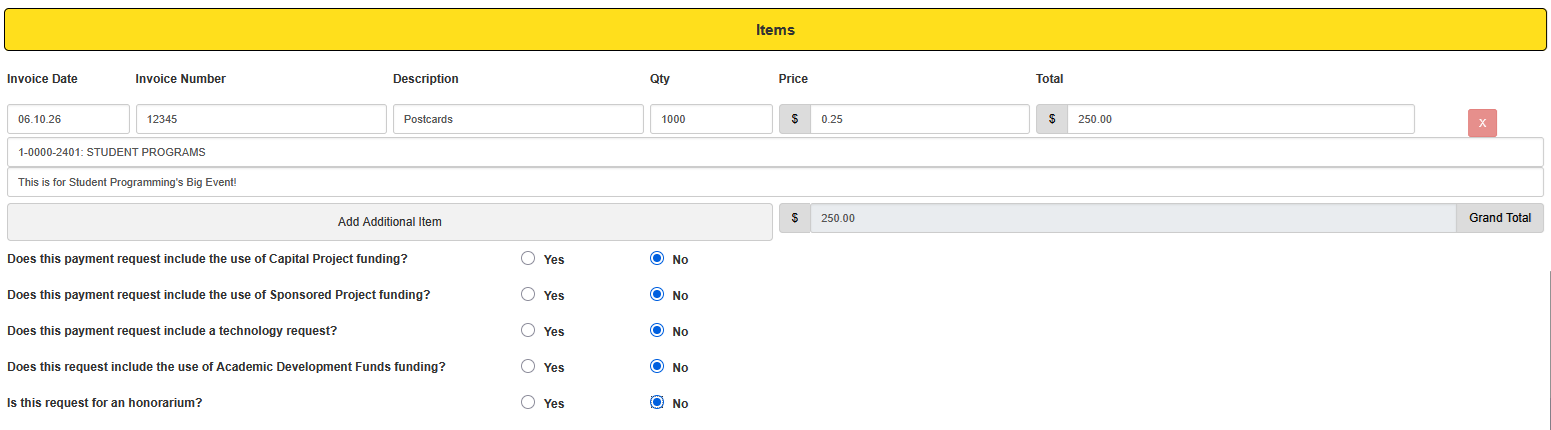
Once a department is selected, the Authorized Signature fields at the bottom of the form will automatically populate. These fields should not need to be changed.

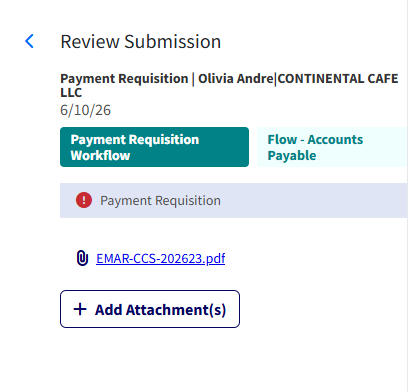
If attachments are required, use the Add Attachment(s) button at the bottom of the form. When you are ready to submit your request, click Submit.

The approval workflow takes place behind the scenes and will automatically route the form to the appropriate individuals and departments for review and approval.
Once your Payment Requisition has been submitted, you will receive notifications throughout the approval process. You will receive email notifications when your request has been approved, denied, or returned for additional information or revisions.
What if I am an Authorized Signer?
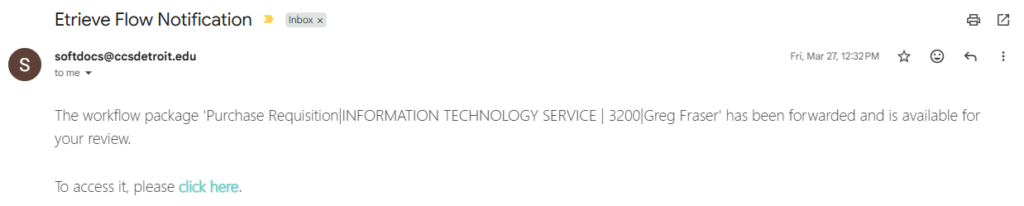
If you are an Authorized Signer receiving a form for approval, you will receive an email notification when a package (form) is ready for your review and signature.
Once you have logged in, you will see all of your package submissions. Click the package you would like to review to view any uploaded attachments or supporting documents.

When you are ready to take action, the Approve, Decline, Return, and Refer options are located at the bottom of the form.
Selecting Approve will move the request to the next step in the workflow.
Selecting Decline will reject the request and end the approval process. The originator will receive an email notification informing them that the request has been declined.
If additional information or revisions are needed before a decision can be made, you may select Return to send the form back to the originator for updates. Once the requested changes have been made, the originator can resubmit the form for approval. The Refer option allows you to route the form to another individual for review, input, or action before the approval process continues.

Support and Training
We want to make this transition as smooth as possible for everyone. Here is how you can get help:
Technical Issues: Please direct all technical questions to ITS by submitting a helpdesk ticket. For example, submit a ticket if you are unable to attach a supporting document.
1:1 Training: You can schedule a personalized session by reaching out to any member of the Business Services team by emailing us at busserv@ccsdetroit.edu